Saturday, May 2, 2015

Quick answers to everything: Wolframalpha

Wolfram/Alpha - More than a Search Engine

You know that friend you have that seems to know everything, the guy that is like a human Encyclopedia?   This search engine is like having that friend on call all the time.   Unlike google that typically only gives you search results of websites that could answer your question, this search engine just gives you the answer.  So also unlike your friend, who will want to give you the twenty minute explanation and the full context of the answer, this will get straight to the point, more like the overworked and cranky teacher who knows the answer and just wants to move on.   Also like you friend and your cranky teacher you can ask for more in-depth answers, if you want it, just by scrolling down.
Try it out for yourself at http://www.wolframalpha.com/


Here are some examples of what Wolfram Alpha can do. http://www.wolframalpha.com/examples/
Try it out for yourself at http://www.wolframalpha.com/

Even MORE Google Search Tips and Trick


Here is a Slide Show of even MORE Google Search Tips and Trick from the students of Baker University.   Scroll through these interactive slides of just relax as it rolls through the great tips.  All of the links and videos are clickable.  When you see a slide you want explore more thoroughly, just click the pause button.  When you are ready to resume just click play again.  You can also navigate with the forwards and backwards buttons or with the Slide # drop down menu.


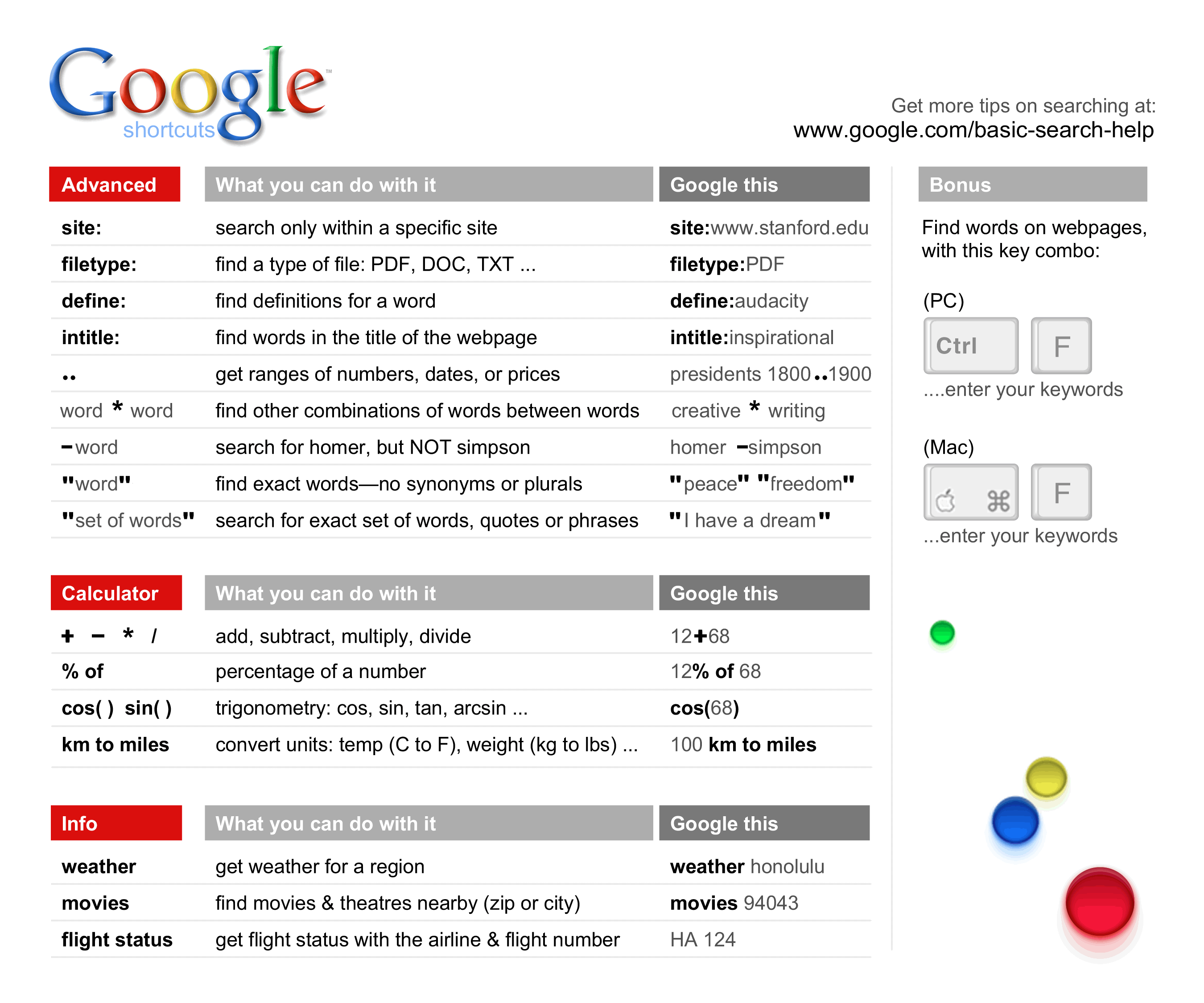
Also here is a Cheat Sheet.
Here is the original link for this image:
  http://dmrussell.net/search-education/Google-cheat-sheet-7.5X9-updated.png  

City Reports by Google

Complete City Report

Made easy with Google


Here is a fun quick project you can do with almost any grade. Have each student choose a city any city.  You could spin a globe to pick it out.  Then to find out lots of information about that city use these keywords in you Google search.


See Below for all the steps that were used to create the searches in the video.  

  • cityname Weather


  • cityname Time


  • cityname venue


  • currency converter


  • cityname map


  • flight times from cityname to cityname

OR….
Simply type in the name of the city and get all the information in one clear brief glance.

Sunday, April 26, 2015

Symbaloo is sooo cool

Symbaloo is a cool new way to collect and share websites for your students.  All the websites that you use on a regular basis that you want or you want your students to have easy access to all collected in one convent and graphically appealing place.  Below is a screen shot of what on of mine looks like.  It's not much yet but I plan on adding more of the uploading art links throughout the year.  Also as I find new cool resources for my students I can add it without them needing to update anything.  They stay up to date as I modify my Symbaloo.  Then all I is add the new site to my Symbaloo and the student then has access to it.  No more trying to type out tinyurls or scanning qr codes I can just tell them to go to my Symbaloo and click on the link we want to access.  Symbaloo also has an iPad app.  So for all the schools that are 1:1, your students can access it with the iPad too.


Here is a video that better explains what this is.  Making your own webmix is very easy and I am excited to use it with my students.  Now rather than having my students bookmark different sites for my class they can just bookmark this one site which I can update and change as needed.  You can also use this for yourself for all those sites that you go to often by setting this as your home page.


Social Media in Education

Think that Social Media is an unimportant frivolous activity that has no place in education.  Think again...


But if Social Media scares you check out this PowerPoint that will teach you how to safely use Social Media.  


Pinterest

Pinterest

What is it and why use it as a teacher?  
Imagine a giant cork-board. On that cork-board you have all those great tips tricks and hack, all those awesome lessons you want to try out someday, all the articles you want to read this summer when you have time.  This is another way to collect and share your internet finds.  I love how it is visual and easily organized.  Then when I want to go back and explore deeper I can find the board that I created, find the pin, click on it and it will link me to the site. Now imagine being able to see other teachers boards and taking the things they pinned on their boards. Using and exploring Pinterest is so much easier than I am making it sound.  This really, truly is one of my favorite tools that I use as a teacher and as an artist. Just watch the video below to see what I mean. 


Click here for a brief Tutorial.
Now sign up for a free account here.
4) If you want a place to start explore the resources below to find some inspiration on how to use Pinterest as an educator.
5) Below is a list put together by from Profession Marcia Jeans, of Baker University, of some great Pinboards from teachers/organizations. These are six pinners from the field of education and leadership . View some of their resources and add them to you own pinboards or follow them!
Vicki Davis (coolcatteacher)Vicki has created boards on: ”Being a Social Media Maven”, “Teaching Ideas and Apps” and “Collaborative Writing”, and my favorite “Global Collaboration in Education”.
One of the movers and shakers in the field of social media in education, Eric is using his boards to organize resources in the areas of educational videos, Google chromeextensions, Twitter apps and resources, Web 2.0 tools for educators and his personal learning network (PLN).
Karen is an educator with the Ontario Ministry of Education’s Literacy and Numeracy Secretariat. She has created boards on “Transforming Education”, “Great PD Links” and boards with resources in the areas of science, the arts, literacy and numeracy.
An ICT specialist in Missouri, Debbie has curated her resources on social media and web 2.0, ideas in education, infographics and her work as a PhD grad student.
Shannon’s boards run the gamut of teaching from kinder to language arts, and includes a great board on edtech essentials.
By far the busiest pinner of the list, Shelly has amassed an extensive set of resourcesin everything from digital storytelling and graphic organizers, to collaboration tools and word cloud tools.

Sunday, April 19, 2015

Lesson Plan databases

How to Write Find New Lessons

We all have our tried and true lessons.  The ones we love.  The ones we can teach in our sleep and that the kids look forward to every year.   We have tweaked and perfected these lessons over the years and they are the staples of our curriculum.  And then there are all the lessons in between these great loves.  These are the ones that aren't yet perfect or mandated from above or are just kind of boring.  These "in-betweeeners" are the replaceable.  However we often find our selves repeating these "in-betweeners" because we just don't have anything better and certainty don't have the time to develop something awesome.   This is when lesson plan databases are awesome!

All Teacher

Teachers Pay Teachers  - This is like an online lesson plan swap store, kinda like amazon for lesson plans.  I have found some real quality stuff and some fluff.  Most lesson seem to range between $0.00-10.00 and you can filter your searches with the the free option. You have to create a free account to download any materials. 
Share My Lesson Share My Lesson is a place where educators can come together to create and share their very best teaching resources. Developed by teachers for teachers, this FREE website gives access to high-quality teaching resources, including many lessons aligned to the common core.
ReadWorks This is not one that I have explored much because it doesn't have much for the arts.  However, I put it up here because it "provides research-based units, lessons, and authentic, leveled non-fiction and literary passages directly to educators online, for free, to be shared broadly. Best for grades K-6."*
SMART Board Files
SMART Exchange - "This is the big daddy of them all! This site has an amazing plethora of SMART Board files for your classroom. You must sign up for a free account. They are now starting to add some content that has to be purchased, but there are thousands of free Notebook files. Keep in mind you must have SMART Notebook software on your computer in order to open any of the files. It can be downloaded for free here. Choose version 11.4 for Windows or Mac if you want to be able to use it beyond 30 days."*
Harvey's Homepage -"Teach elementary or middle school math? Run on over to this website for some very high quality FREE Notebook lessons for math."* 

Art Teachers

Artsonia Lesson Plan Database

 For my fellow art teacher friends you might be frustrated by most of the data bases because the lessons offered are not the deeply rich Discipline Based Art Education (DBAE) lessons that you are looking for.   So again I direct you to Artsonia.com.  Honestly if you are an art teacher reading this blog you know my love affair with Artsonia and they are well deserving of my affection.  Their lesson plans are all written by real practicing art teachers.  Most of the lessons are  The consistent formate, the advanced search features, and the student example thumbnails are just some of the features that I love about this database.   You do need to be a teacher member of Artsonia to access this page, but if you are an art teacher you should be a member of this organization for so many other reasons anyway.  

The Incredible Art Department. 

This is the staple that has been around forever.  Since 1994 (which in technology years is forever) this site has been providing teachers with high quality DBAE lesson for art teachers.  These are useally very high end and involved lessons that need a lot of prep.  This is a great place to find some new favorites, but for better or worse these lesson tend to be a little "ivory tower."  This is good place to look for a new unit, but not for an inbetweener.


*Resource provided by Professor Marcia Jeans of Baker University  

Saturday, April 18, 2015

Staying Organized

Screen Shot 2015-04-18 at 6.32.36 AM.png
Artsonia.com is an online children's gallery.  For art teachers it is a wonderful resource.  Here you can you upload your students artwork to archive and as a fundraiser. You can also organize your classes, monitor your students work, encourage your students by commenting on their artwork.  You can also assign grades, and communicate with parents.  My favorite feature is the huge database of high quality art lesson plans shared by other practicing art teachers.  


Screen Shot 2015-04-18 at 6.39.59 AM.pngOnline-Stopwatch.com is a very simple and effective time management tool to help students stay on task.  As the name implies this is a simple timer display.  It has many timer options and even has Classroom Timers that are more visual.  This visual timers are fun and  great for young children who can’t tell time yet.

If you are looking for a good way to digitize your plan book binder look no further than planbookedu.com.  This site at $25 a year is a great deal because you can upload any file lock in plan times, move lessons forward if a lesson need to be stretched out, copied for multiple classes and moved as schedules change. Teachers can also upload file so you can have you PPTs right there in you plan notebook. The only downside to this is that because it is solely internet based, if you can't get online you can't get to your plans because it doesn't not have an off-line application.


 Google Calendar is another way for teachers to stay organized.  What makes Google Calendar unique from other traditional calendars is it’s ability to share with other people and sync with multiple devices.  Once you have created your Google Calendar you can share it with your students and/or embed it onto a website, blog, etc.  You can also push you plans from Planbook into your Google Calendar to stay even more on top of it. To see more in-depth discussion about Google Calendar see my post by clicking here.


Here is an extensive list put together by Professor Marica Jean of Baker University of lots more tools to staying organized.

 Digital Organizational Tools for Educators
Class Dojo is a classroom tool that helps teachers improve behavior in their classrooms quickly and easily. It also captures and generates data on behavior that teachers can share with parents and administrators. This is a favorite of many teachers.
LiveBinders is a way for users to bookmark and showcase WebPages in a categorical format using tabs to organize web url's. The user can select a broad topic category like "Learning Support Tools" designed to help struggling students and then organize sub categories around language development through the use of tabs.
Remember the Milk is a free personal organization tool that works online and with mobile phones. Remember the Milk allows you to add assignment due dates to your to-do lists via text, email, or directly on your account homepage.
PlanbookEdu.com is a website offering ways for teachers to organize and access their lesson plans online. Users can access their planbook from any internet connection, and customize or edit, using word processing software, online. Both free and premium service ($25/yr, group discounts) are available.

Thought Boxes is a task management service with a hint of mind mapping in its user interface. At its most basic, Thought Boxes is a place to create to-do lists. You can organize your to-do lists into groups that Thought Boxes refers to as "trains." Your lists can include basic text notes as well as links to other sites. The "trains" you create in Thought Boxes are basically categories for your to-do lists. For example, in the screenshot below you will see that I created a train for tasks related to my teaching responsibilities.

Doodle is an online scheduling tool that lets you "poll" attendees to see which day and time works best for everyone. The service is free and you don't even need to register to use it. To get started, just visit Doodle and click the Schedule an event button.
Evernote is a suite of software and services designed for notetaking and archiving. A "note" can be a piece of formatted text, a full webpage or webpage excerpt, a photograph, a voice memo, or a handwritten "ink" note. Notes can also have file attachments. Notes can be sorted into folders, then tagged, annotated, edited, given comments, searched and exported as part of a notebook.
Evernote supports a number of operating system platforms (including OS X, iOS, Chrome OS, Android, Microsoft Windows, Windows Phone, BlackBerry, and webOS) and also offers online synchronization and backup services.
SignUp Genius -If you are a group leader and find yourself organizing volunteers, meals, service projects, or events... we want to make your life a lot simpler! Some school even use it for signing up for conferences. Coordinate it all online... FREE!
WebEx - Free account - upload and share an agenda, files, and contacts.Meet wherever you want – your office, iPhone, smartphone, even your iPad! Record and replay your meetings and share with colleagues.

Remind -A safe way for teachers to text message students and stay in touch with parents.    Teachers simply sign up, create a class, add students, and start messaging. Students and parents opt-in to join classes via a unique class code.
WhenSend -WhenSend is a web app that lets you email people in the future. Use it to remind yourself of something, send your friends or family a birthday message, or send yourself a time capsule...there are thousands of possibilities!

Virtual Classroom Management

Timers
Online Stopwatch - count up or count down, multiple timers to choose
Time Me - can count up or down, with or without an alarm, in a loop or not, and in various colors, sizes and fonts
E.gg Timer - just add the time in seconds or minutes at the end of the URL
Noise Monitors
Bouncy Balls - spheres bounce when noise levels increase
Calmness Counter - turn the volume of the speakers down, then increase or decrease the sensitivity of the sound to gauge noise level
Traffic Light Flash File - click on the stop light colors to indicate volume
Traffic Light Flash File - award points within each of the stop light colors  
Point Trackers
Class Dojo - online class management system
Whiteboard Quiz Scorer - two team quiz scorer keeps track of points up to 10 questions
Class Badges - free, online tool where teachers can award badges for student accomplishments
Class Charts - data-rich seating charts and behavior management
Random Name Selector
Class Tools - embeddable fruit machine random name generator
Brain Breaks
GoNoodle - Without leaving the classroom, students participate in a variety of purposeful movement designed to get the wiggles out and refocus the classroom — all in five minutes or less


Sunday, April 12, 2015

Google Drive

Top Four Features of Google Drive

1. Storage.


Google Drive is a great place to store your stuff.  It's free and when you convert your files to the google equivalent then it won't matter if it was made on a Mac or PC.  This was great for me when my district went from PC to Apple.  This is also great when you want to share a file with someone but don't know if their computer is PC or Apple.  

For most people the amount of storage space available on Google Drive is more than enough.  However for us art teachers it's another story.  With all my images, presentations, and videos I maxed out my Drive space pretty quickly.  So now all my instructional video are stored on YouTube, and I only store basic office documents (word, presentations, spreadsheets).   See video below for tips about keeping you storage space on Drive down.


2. Work from any computer.


Google has bridged the gap between PC, Mac, Table, and SmartPhones.  Because their you are working online and using the Google programing your documents can be read and modified on all devices.  Some devices such as smart-phones may make you download the app first, but again, it's all free.  


3.  Collaborate remotely.


When you create a document on Google Drive you have the option to share it with others.  You can choose to allow other to modify and work on the document with you.  This can also be done simultaneously.  For example the music teacher and I were working on writing a grant together over winter break.  Neither one of us wanted to leave our homes in the middle of blizzard, so we called each other and both got on the word document at the same time.  See the videos below for a better explanation.  


4. Forms!


I love Google Forms!  It is a great way to create a survey or quiz online.   Whenever you need to collect data Google Forms is the way to go.  To create a survey, pick out a template, write your questions and choose how you want them answered (i.e. multiple choice, short answer, check all that apply, etc).  Google Forms will automatically collect and organize all the information in an easy to read spreadsheet.  It will also graph the data automatically for you as well, by simply clicking on the forms tab at the top on the screen and then select “Show summary of responses.”  See video toutorial to see how this works. 


Extra Features on Google Drive.  

Google Forms Extended. 
Giving a test or survey is super easy when using Google Forms.  Now there is a new tool that will instantly grade your students results too.  Flubaroo is an extension (like and extra tool) you can add to your Google Forms Here is a link to very detailed directions  http://www.flubaroo.com/flubaroo-user-guide. It will show you how to set up a Google Form as a test and how to have it automatically graded. 

Once you have your Google Forms test all set up and ready to go your students need to be able to quickly and easily access it.  There are at least two great ways to do this.  Click Here to learn more.  

Templates for Google Drive

There are lots of temples that other people have made so before you reinvent to wheel (or the powerpoint) check to see if someone has already created a templet you can use.  To access the templets click the Create button and choose one of the file types - Document, Presentation, Spreadsheet, Form or Drawing. Then click on File > New > From template. (if you choose Document, you will find templates that are in the document file format - if you choose presentation, you will find templates in the presentation format.


You can also browse all template by going to the template gallery https://drive.google.com/templates
Tip:  Be sure to select English because this is a world wide wiki 

Google Dive Add On Apps
There are lots of other tools that you can use on Google Drive and they are constantly updating more.  To browse extra tools and extensions available in Google Drive click on the red New button then the last option is more, select more and then click of Connect More App.  There are lots of education apps available, so explore what there is, add new things and enhance you Google Drive even more.  


Other Great Resources
Expert VillageThis website has 40 video tutorials just on Google Docs. Browse through the topics and pick a few that interest you.
The Paperless Classroom Using Google Drive - This is an excellent step-by-step guide created by North Canton City Schools with some excellent tips and tricks for using Google Drive in the Classroom.